Canva’s AI Image Generator, a component of Canva Magic Studio, strives to come very near to your dream of having your creative tools read your thoughts (or at least your prompts). We’ll give you a pleasant tour of this AI tool’s capabilities, practical applications, and whether or not it lives up to the hype in our review. Expect an unbiased examination of important aspects including text-to-image conversion, style diversity, and connection with Canva’s design ecosystem, along with practical testing outcomes, advantages and disadvantages, and a reliable conclusion.
What Is the Canva AI Image Generator? (Overview)
Canva’s AI creative suite includes the Canva AI Image Generator, which is frequently accessed through the Canva platform’s Magic StudioTM and Magic Media features. Without the need for stock photos or sophisticated design knowledge, it is made to transform basic text prompts into fully-formed unique images.
Consider it this way: rather of searching endlessly for an image that nearly matches your vision, you simply specify what you want, such as “watercolor kitten in a teacup” or “futuristic city skyline at sunset,” and Canva’s AI will create it for you. Once created, these pictures can be altered or included directly to your designs for marketing graphics, presentations, or social media postings.
It is simple to access. The AI Image Generator may be opened while working in Canva via the Canva home tab under Canva AI, the Magic Studio menu, or the Generate button in the editor. It is especially attractive to designers, marketers, content producers, and novices who desire distinctive pictures without a high learning curve. It is accessible to both free and paid users.
How to use Canva AI image generator
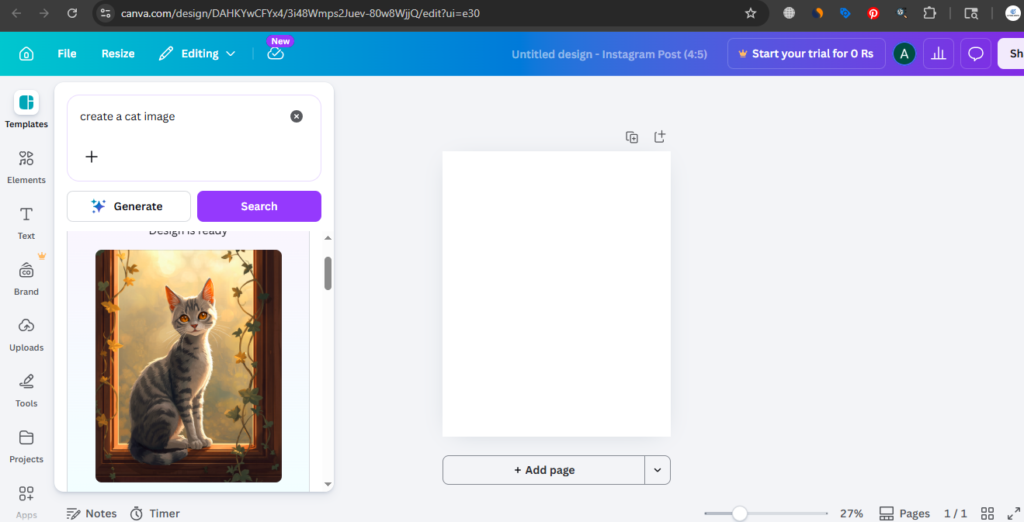
You can use Canva’s AI picture generator feature to produce images by entering text questions. Canva AI creates options for you to select from when the command is sent. Both free and paid Canva users can utilize this AI tool.
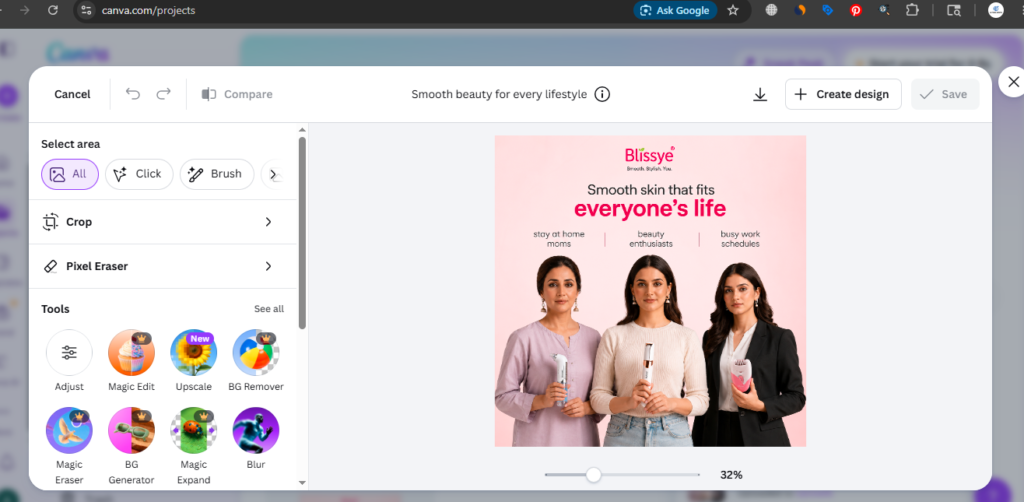
You must choose “Canva AI” rather than “Your Designs” or the “Templates” option if you wish to use it from the home tab. In addition to generating photos, Canva AI has a chat-style input window where you may enter prompts to create designs, write documents, or write code. You choose the “Design for Me” option and input your prompt to use it for design.
When providing a prompt, you can also use voice input or include media. Once the query has been entered, choose the desired feature, pick an optional style, and submit it. After that, Canva uses your input to produce a result.
The AI picture generator can also be accessed straight from the design tab if you are already working on a design. Simply select “Magic Media,” which enables you to create graphics and brief videos in addition to photographs. You can specify what you want in a prompt input field. The arrangement and style are also up to you. You can then click to add any of the alternatives that Canva creates depending on your input straight to your design page.
Comparing Canva AI-generated designs to human designs
Quality
Canva AI-generated designs ranged in quality. There were times when the output had parts that felt out of place or didn’t exactly match the prompt. A human designer, on the other hand, would carefully review the language to ensure that it fits, eliminate any extraneous information, or request any that are missing.
Creativity
Magic Media and Canva AI both demonstrated inventiveness by producing a variety of design possibilities and modifications. But it seemed more prefabricated. By utilizing distinctive design features and being emotive in their designs, human designers are able to be more creative than the Canva AI picture generator.
Overall satisfaction
For straightforward tasks, such as designing a certificate, the Canva AI image generator performs better. Both basic and complicated designs would be suitable for human designers.
Meanwhile, its speed and ability to generate multiple iterations of the same design request simultaneously are two of its main benefits over human designers.
Key Canva AI Image Generator Features (Canva AI Features)
Whether you’re designing social media posts, making branding images, or simply experimenting with creative prompts, Canva’s AI Image Generator is full of tools that make turning ideas into visuals a breeze. What sticks out is this:
Core Image Generation Tools
Text-to-Image: Canva creates an original image in a matter of seconds based on your description; you may select from a variety of techniques, including painting, illustration, and photography.
Style Flexibility: Canva allows you to customize the appearance of your AI photos, from realistic photography to oddball vector art and abstract ideas.
Aspect Ratios: To ensure that the final product is ideal for your project, you can choose canvas sizes such as 1:1 for Instagram or 16:9 for presentations.
Hands-On Experience: Canva AI Image Generator Test (Canva AI Test)
I experimented with Canva’s AI Image Generator to discover how it functions beyond the hype, from workflow and actual editing requirements to realism and accuracy. The decision? Its results and adaptability fall somewhere between “magic” and “manageable,” but it’s quite simple to use, especially if you’re already using Canva for design. The output options are straightforward to select, and the graphics typically capture the tone and style of your suggestion; nevertheless, sophisticated adjustments or fine-tuning aren’t actually available now.
Visual Quality & Output Evaluation (Canva AI Results)
All things considered, Canva produces polished images, especially for social media and informal graphics. But realism and detail can be erratic; if your cue isn’t exact, complicated scenes, faces, and hands can occasionally appear warped or inconsistent.
Pros and Cons of Canva AI Image Generator
Pros
Canva’s AI Image Generator excels in a number of crucial aspects that make it ideal for regular creators:
Fully Built-In Canva Workflow: Because the generator is integrated inside Canva’s design suite, you don’t need to download, upload, or juggle tools in order to produce images and include them into your designs. For both busy marketers and designers, this smooth flow is exceptional.
Beginner Friendly & Fast: There is no difficult learning curve or complicated settings to become proficient with; all you have to do is fill in a prompt and select a style. Even non-designers can rapidly produce visually appealing outcomes.
Cons
Of course, it’s not perfect — especially for users expecting advanced AI art control:
Inconsistent Fine Details: When prompts become particular or sophisticated, graphics may lack clarity or consistent detail—things like anatomy or delicate details may appear wonky—even though they often look good for general use.
Less Control Than Advanced Tools: Canva’s lack of deep prompt adjustment, iterative revisions, and advanced settings, in contrast to Midjourney or Stable Diffusion, may irritate power users who want fine-grained control.
Is Canva AI Image Generator Worth Using?
If you’re a designer, content producer, marketer, or novice who wants to quickly and easily create images within your current Canva workflow, Canva’s AI Image Generator is a useful, user-friendly, and effective tool. Without switching between apps, it is excellent at assisting you in creating ready-to-use visuals for social media, blog posts, advertisements, presentations, and more. It is an excellent option for routine design work and quick content creation because of its user-friendly interface and strong Canva integration.
Key takeaways:
- By entering language instructions in a chat-style input window, users of the Canva AI picture generator can produce images and edit the resulting content.
- Social media posts, logos, posters, book covers, slides, business cards, YouTube thumbnails, schedules, invitations, and certifications are just a few of the designs that Canva AI can produce.
- In most situations, using the AI on Magic Media would result in more aesthetically pleasing designs; however, Canva AI performed better for content copy, carousels, slides, and very basic design jobs.
- Aside from designs, the Canva AI can generate text content and answer questions.
- With careful prompting, tweaking, and regeneration, the limits of the Canva AI image generator can be overcome, and it can also be used as a starting point for design ideas.
Conclusion
One tool that has included AI to make its users’ jobs easier is Canva. I was able to make graphics using the Canva AI picture generator by just entering plain text instructions.
Canva AI, which can also be used to create text content, is what I used to create images. I also looked into the design tab’s “Magic Media” option, which allows you to produce AI-generated visuals, films, and photos. Canva AI is a useful tool for both designers and non-designers due to its capacity to facilitate content development, picture generating, and editing.
When I tested the Canva AI picture generator, I found several drawbacks, such as sporadic errors, but it’s still a good place to start for many projects.
Nevertheless, in terms of originality, accuracy, and personalization, human designers continue to be the best. The Canva AI still has a speed advantage, though.
Experience
Canva helps you make lots of things like Instagram posts, reels and stories. You can also make Facebook posts, YouTube Shorts and video thumbnails. It’s almost free.
When you pay for Canva you get features. These include AI image editing and designing websites. You can even use it for work assignments. There are other creative tools too.
I have used Canvas AI Image Generator with my team. It edits images well and makes them look great. The Canva AI Image Generator is very good, at its job. Canvas features are very helpful.
AI Tool Spots is a technology-focused platform dedicated to sharing the latest updates in Artificial Intelligence, software tools, automation, SEO, and digital innovation. We publish informative guides, honest reviews, tech tutorials, and valuable resources to help bloggers, entrepreneurs, marketers, and tech enthusiasts stay ahead in the digital world. Learn more at aitoolspots.com.