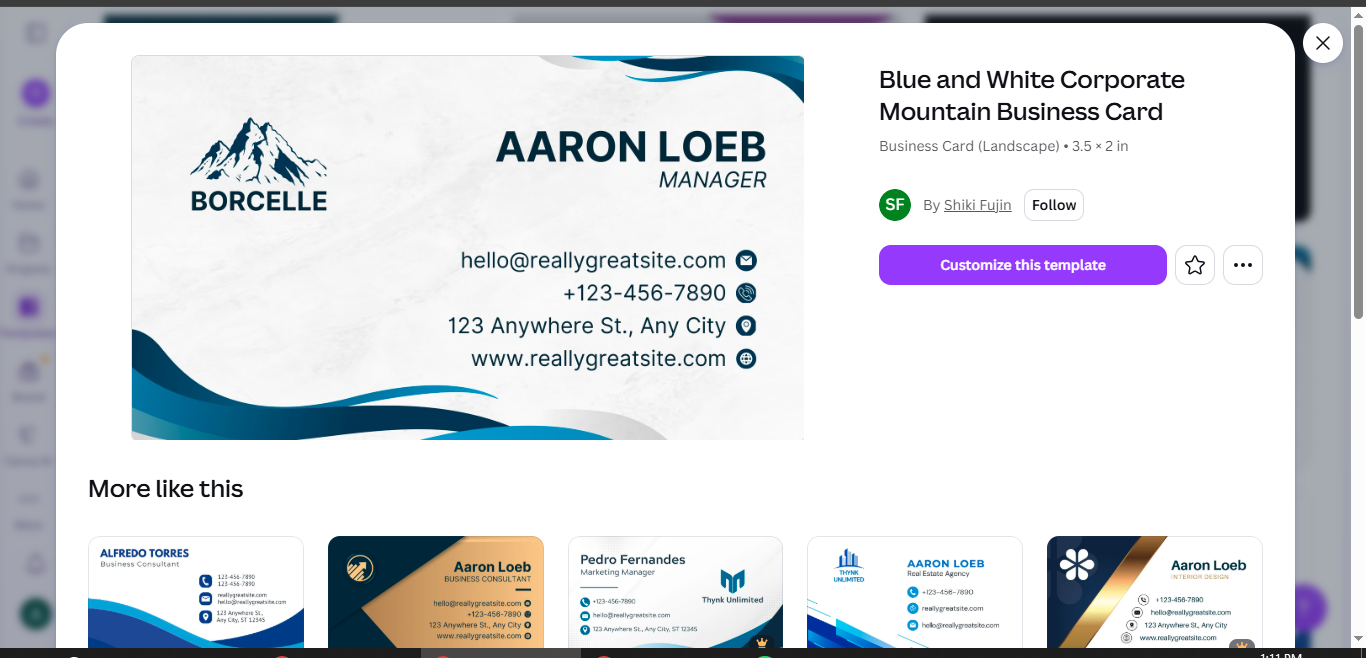
This Canva review comes from 25 months of actually using it for real work-social posts, client decks, a small business rebrand, and more Instagram carousels than I’d like to admit-not a quick click-through before writing a roundup. I’ve watched Canva evolve from a simple drag-and-drop template tool into a genuine AI-Powered design platform, and I’ve paid for enough design software over the years, Photoshop included, to know the difference between a tool that’s actually useful and one that just has a longer feature list. This review covers what Canva does well in 2026, where it genuinely falls short, exactly what each pricing tier includes, the alternatives worth considering, and an honest rating based on real projects rather than a features page.
What Is Canva?
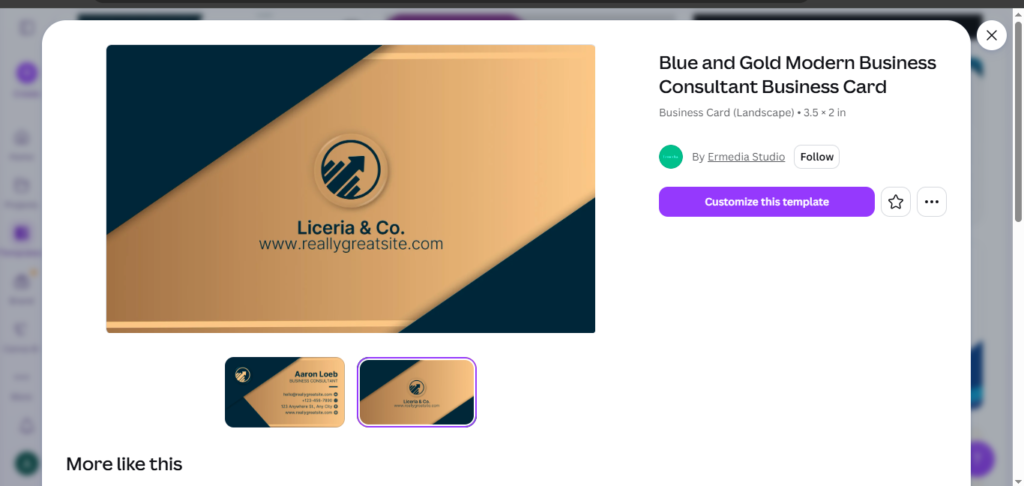
Canva is a browser-based, drag-and-drop design platform built to let anyone-no design training required-create social posts, presentation, documents, videos, and printed materials from templates. launched in 2013, it now has well over 150 million monthly users worldwide, and it’s become the default design tool for small businesses, marketers, teachers, and students who need something to look polished without hiring a designer or learning Photoshop. In 2026, Canva has pushed hard into AI: its Magic Studio suite handles everything from writing captions to removing backgrounds to generating images from a text prompts, all built directly into the same editor where you’re already designing.
My Personal Experience With Canva
I started using Canva in mid-2024 for something small — a flyer for a friend’s event — and the speed of it is what hooked me. Twenty-five months later, it’s the tool I open before almost anything else visual: Instagram carousels, a client’s rebrand deck, printed table cards for an event, even a quick resume redesign when a friend asked for help.
The AI tools are where my opinion has shifted the most over time. Early Magic Write felt like a novelty — generic captions I’d rewrite completely. The current version is genuinely useful for a first draft, though I still rewrite most of what it gives me rather than using it as-is. Background Remover, on the other hand, has replaced a step I used to do in Photoshop entirely; it’s fast enough that I use it on nearly every product photo now.
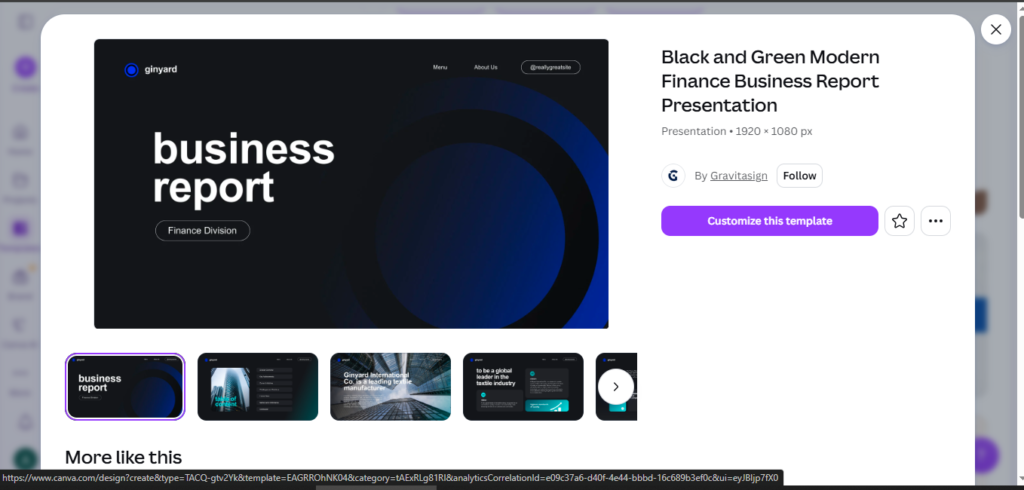
Where I’ve been burned: premium templates and elements are locked behind Pro in a way that isn’t always obvious until you’ve already built half a design around one, and I’ve had a Business-tier team account where the per-seat cost crept up faster than anyone budgeted for once we added a fourth designer. Neither issue has made me stop using it — but both are why I always check a template’s license and count seats carefully before recommending Canva for a team, rather than just for myself.
Quick Verdict: Canva Review Summary
Rating: 4.4 / 5
- Best for: Non-designers who need professional-looking visuals fast
- Starting price: Free; Pro is $15/month (or around $120/year annually)
- Standout feature: Magic Studio’s AI tools plus a genuinely massive template library
- Biggest drawback: Per-seat team pricing adds up, and premium content isn’t always obvious until you’re mid-design
- Top alternative: Adobe Express (Adobe ecosystem) or Figma (professional design control)
- Bottom line: Still the fastest route from blank page to polished design for non-designers
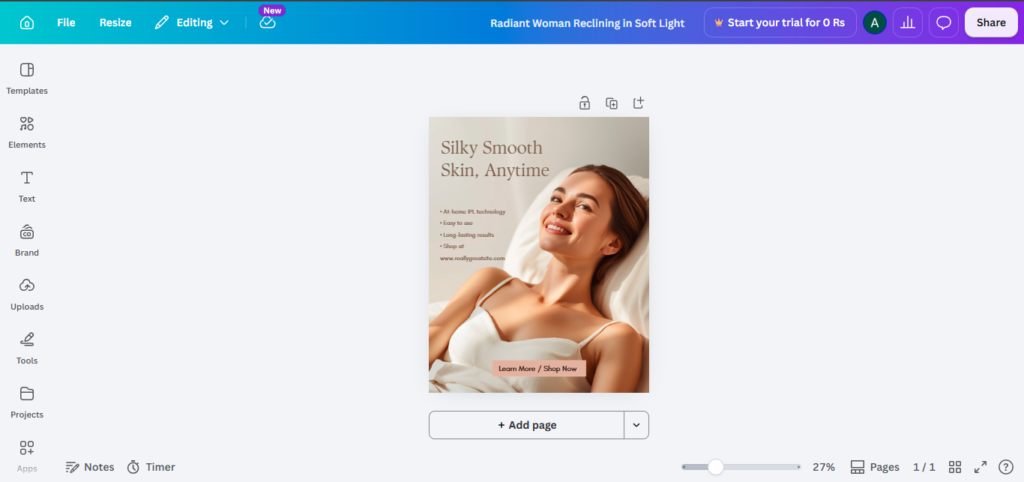
Key Canva Features (Tested)
Canva has expanded well past “template tool” at this point. Here’s what actually matters in 2026:
- Magic Studio (AI suite) — Magic Write drafts captions and copy, Magic Design auto-generates layout options from a prompt or uploaded photo, Magic Edit and Background Remover handle image editing in seconds, and Dream Lab generates original images from text. Genuinely useful for first drafts; expect to refine most outputs by hand.
- Templates — Over 250,000 templates spanning social posts, presentations, resumes, flyers, and more, plus 100M+ premium stock photos, videos, and graphics on paid plans. The sheer volume is Canva’s biggest advantage over almost every alternative.
- Brand Kit — Store your brand colors, fonts, and logos so every new design starts on-brand automatically. Pro includes up to 5 kits; Business scales to 100, useful for agencies managing multiple clients.
- Content Planner — Schedule posts directly to about nine social platforms from inside the editor. It’s convenient, but genuinely basic — most people posting seriously still add a dedicated scheduling tool alongside it.
- Canva Print — Order physical business cards, posters, and merchandise directly from a finished design, with a modest discount on Business and Enterprise plans.
- Real-time collaboration — Multiple people can edit the same design simultaneously, with comments and approval workflows on higher tiers, which is where Canva earns its place in marketing teams rather than just solo use.
- Mobile apps — iOS and Android apps cover most editor functionality, though some users report more friction with layer management on mobile than on desktop.
Heavy AI users can add an AI Pass for significantly more monthly usage, though it’s a separate cost on top of your plan — worth budgeting for if Magic Studio becomes central to your workflow.
Canva Pricing Plans
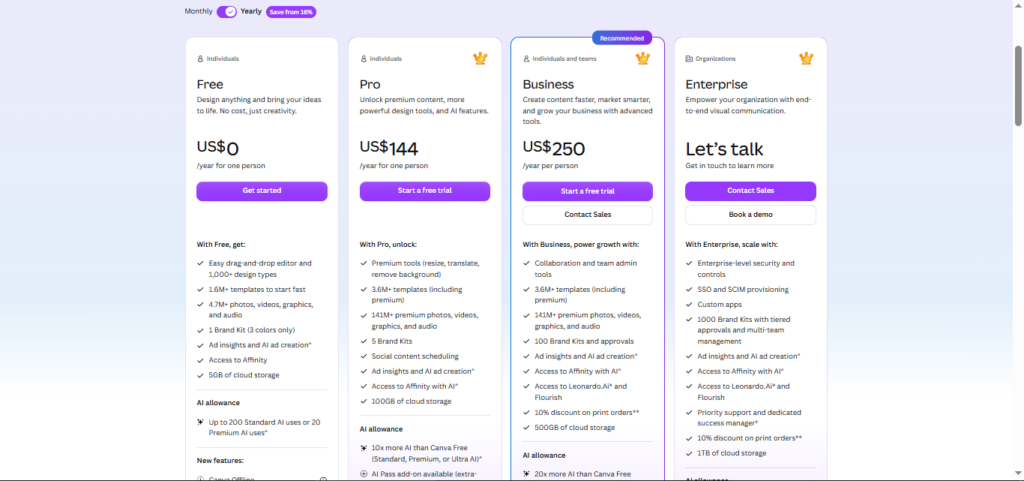
Canva’s 2026 lineup has four tiers, and the team tier has shifted meaningfully from its old flat-rate structure:
- Free ($0) — 250,000+ templates, 5GB storage, 1 million+ free photos and graphics, and a modest monthly AI allowance. Genuinely usable, not just a stripped-down trial.
- Pro ($15/month, or roughly $120/year billed annually) — Adds full Magic Studio access, Brand Kit, 100M+ premium stock, 1TB storage, Content Planner, and 24/7 support. Ten times the AI allowance of Free.
- Business (roughly $10–25 per user/month depending on team size) — Replaced the old flat-rate Teams plan in 2026 with a per-seat model. Adds up to 100 Brand Kits, approval workflows, and roughly twenty times the Free AI allowance.
- Enterprise (custom pricing) — Adds SSO, audit logs, advanced brand governance, and dedicated support; some features require a minimum seat count.
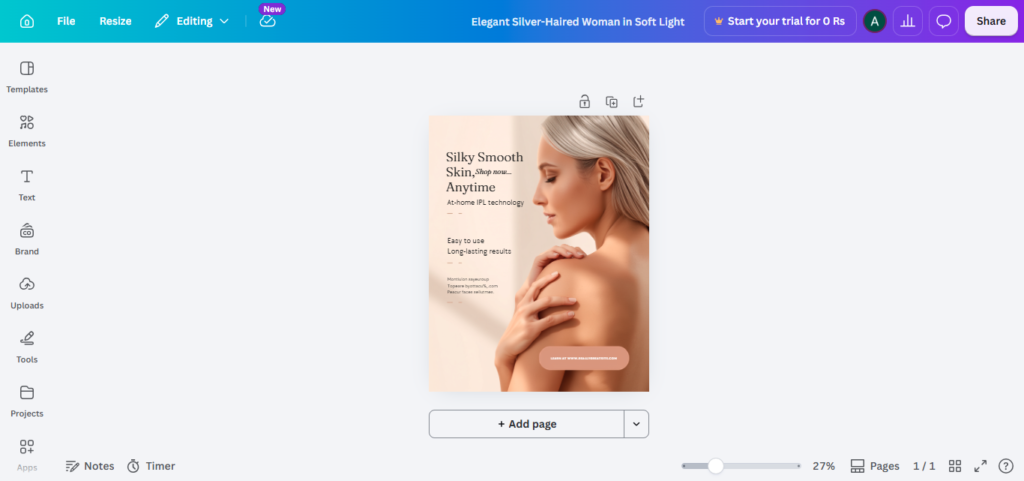
There’s also a separate AI Pass add-on (around $100/person/month) for teams that burn through their AI allowance quickly. And two genuinely free programs worth knowing about: Canva for Education (free for verified K-12 teachers and students, with most Pro features) and Canva for Nonprofits (free Business-level access for verified registered nonprofits with up to 50 users).
Canva Pros and Cons
What Canva gets right:
- Fastest route from blank page to polished design for anyone without design training
- Template library and stock content are genuinely enormous
- Magic Studio’s AI tools are useful daily, not just for demos
- Free plan is legitimately usable, not a bait-and-switch trial
- Real-time collaboration works well for marketing teams
Where it still falls short:
- Templates can look repetitive or “off the shelf” without real customization
- Per-seat Business pricing adds up quickly as a team grows
- Premium templates, fonts, and elements aren’t always obvious until you’re mid-design
- Content Planner’s scheduling is basic compared to dedicated social tools
- Not a substitute for Photoshop or Illustrator on complex, professional-grade image work
None of these are dealbreakers for the audience Canva is actually built for — but they’re exactly what a rushed Canva review tends to skip past.
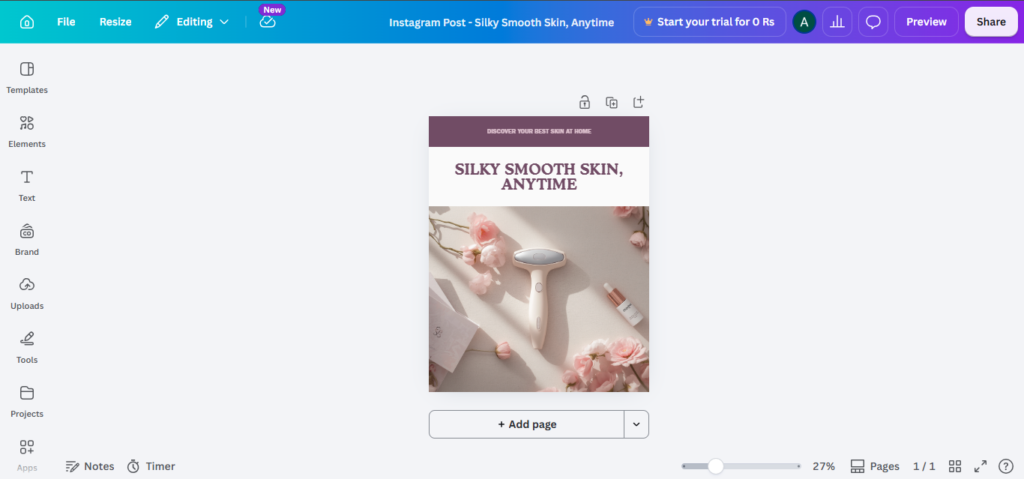
Canva Alternatives (Top Competitors)
No Canva review is complete without the honest question: should you actually consider something else? Depending on what’s missing for you, a few alternatives stand out.
- Adobe Express — The closest direct upgrade if you’re already inside the Adobe ecosystem. Free Firefly AI image generation, Adobe Stock and Fonts access, and Creative Cloud integration make it the top pick for anyone who also uses Photoshop or Illustrator. Premium starts around $9.99/month.
- Figma — Not really a Canva competitor so much as a different category: professional vector design, prototyping, and design systems for teams that need real precision rather than templates. Steeper learning curve, but nothing in Canva’s range matches it for serious UI or brand design work. Free for individuals; paid plans start around $12/editor/month.
- Visme — The pick for data-heavy content: interactive charts, infographics, and business reports where a Canva slide deck falls short. Plans run roughly $12–29/month.
- Piktochart — A tighter, cheaper specialist if infographics specifically are your main output, around $10/month.
- VistaCreate — The closest Canva-like experience for social and print templates, generally at a lower price point.
- Adobe Photoshop / Illustrator — Worth it once you need genuine professional-grade photo editing or complex vector work that Canva’s editor simply isn’t built for.
The honest takeaway: switch to Adobe Express if you’re Adobe-native, Figma if you need real design precision, and Visme or Piktochart if data visualization is your actual bottleneck. For everything else, Canva still covers the most ground for the least effort.
My Canva Rating: Category Breakdown
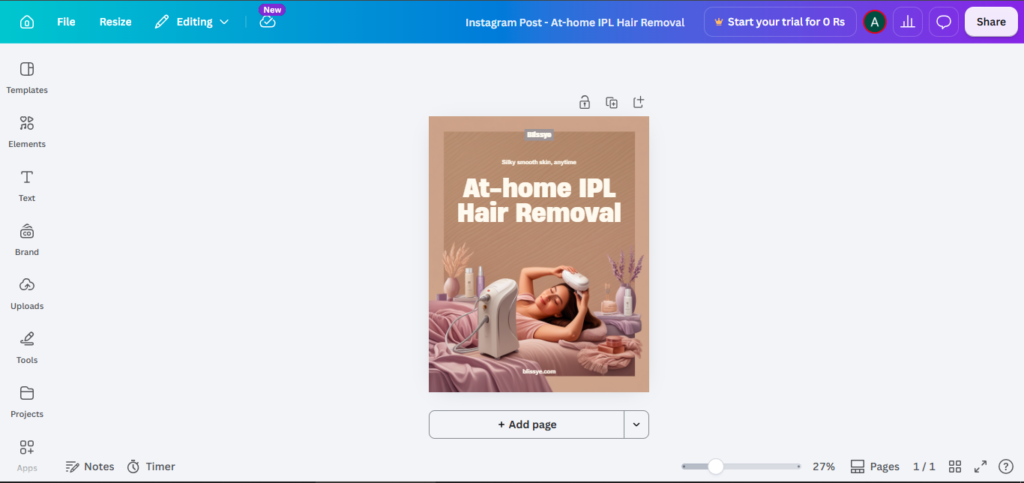
Based on 25 months of regular use, here’s how I’d score Canva across the categories that actually matter:
| Category | Rating |
| Ease of use | 4.8 / 5 |
| Template & asset library | 4.7 / 5 |
| AI features (Magic Studio) | 4.2 / 5 |
| Value for money (Pro) | 4.4 / 5 |
| Team pricing scalability | 3.6 / 5 |
| Overall | 4.4 / 5 |
That tracks closely with what shows up on independent review platforms too — Canva holds around 4.7/5 on G2 across tens of thousands of reviews, and independent research firm Forrester measured a 414% ROI for Canva Enterprise customers. The one place my score consistently lands lower than the public average is team pricing, where the 2026 shift to per-seat Business billing has made costs less predictable than the old flat-rate plan.
Who Should Use Canva?
Canva is the right call for small business owners, marketers, teachers, students, and social media managers who need consistently professional visuals without hiring a designer or learning a complex tool. It’s also a strong pick for small teams that need brand consistency across multiple people creating content. It’s a weaker fit if you’re a professional designer who needs pixel-level control, if your primary need is data visualization rather than general design, or if you’re scaling past a handful of seats, where per-user Business pricing starts competing directly with dedicated alternatives on cost.
Frequently Asked Questions
Is Canva actually worth paying for in 2026? For anyone designing weekly, yes. Pro at $15/month (or about $120/year) pays for itself through Magic Studio, Brand Kit, and premium stock alone, especially compared to buying stock assets individually.
Is Canva good enough to replace Photoshop? For most everyday design — social posts, flyers, presentations — yes. For advanced photo editing, complex compositions, or professional print production, Photoshop still wins; many people use both for different jobs.
What’s the difference between Canva Pro and Business? Pro is built for one person. Business adds per-seat team pricing, more Brand Kits, approval workflows, and a larger AI allowance — worth it once more than a couple of people are creating content regularly.
Is Canva’s free plan actually usable, or just a trial? It’s genuinely usable. Free includes 250,000+ templates, 5GB storage, and a real (if modest) AI allowance, with no credit card required and no time limit.
What’s the best Canva alternative? It depends on the gap you’re hitting. Adobe Express if you’re Adobe-native, Figma for professional design precision, and Visme or Piktochart if data visualization is your main need.
Final Verdict
After 25 months of using Canva across social content, client work, and print projects, my honest verdict is that it earns its place for almost anyone who needs to design without being a designer. The free plan alone covers casual use, Pro is worth it the moment design becomes a weekly task, and Magic Studio’s AI tools have moved from novelty to genuinely time-saving in the last year. Where it falls short — team pricing, template repetitiveness, and a scheduler that’s more convenience than substitute — are real limitations, not dealbreakers, and every genuine alternative on this list trades Canva’s speed for something more specialized. If you’re deciding based on this Canva review alone: start free, upgrade to Pro the moment you hit a paywall you actually care about, and revisit alternatives only if a specific gap keeps showing up.
AI Tool Spots is a technology-focused platform dedicated to sharing the latest updates in Artificial Intelligence, software tools, automation, SEO, and digital innovation. We publish informative guides, honest reviews, tech tutorials, and valuable resources to help bloggers, entrepreneurs, marketers, and tech enthusiasts stay ahead in the digital world. Learn more at aitoolspots.com.