
Two years ago, I was manually moving data between spreadsheets, copy-pasting client information into different tools, and spending the entire morning on tasks that added zero creative value to my work. Since then, I’ve been using AI to automate a huge chunk of that repetitive work — testing different tools, breaking workflows that didn’t actually work, and slowly building a system that now saves me roughly 10-15 hours every single week. This guide is based on those 24 months of trial, error, and genuine results, not a theoretical overview of what automation could look like.
If you’re a freelancer, small business owner, or anyone drowning in repetitive admin tasks, this article will walk you through exactly how to start automating your work using AI — what tools actually deliver results, which workflows are worth building first, and the mistakes that cost me time before I figured out what works.
Automation vs. AI: Understanding the Difference First
Before building anything, it’s worth understanding a distinction that confused me early on. Traditional automation follows fixed rules, if trigger a happens, do Action B. It’s reliable and predictable, but limited to exactly what you’ve pre-programmed.
AI-powered automation adds a reasoning layer on top of that. Instead of rigid if-this-then-that logic, AI can interpret unstructured information, make judgment calls, and adapt to situations that weren’t explicitly programmed in advance. The real power in 2026 comes from combining both — using traditional automation to move data reliably between systems, and AI to handle the parts that require understanding, writing, or decision-making.
Over the past two years, I’ve found the most effective automations aren’t pure AI or pure rule-based logic — they’re a layered combination of both.
Step 1: Identify What’s Actually Worth Automating
My biggest early mistake was trying to automate everything at once. Two years in, my advice is the opposite: start narrow. Before opening any tool, spend a week tracking your actual workday and flag tasks that meet these three criteria:
- You do it repeatedly — daily or weekly, not as a one-off
- It follows a predictable pattern — even if the input changes, the steps don’t
- It doesn’t require deep creative judgment — at least not entirely
For me, the first automations I built were the obvious ones: routing new client inquiries into a spreadsheet, sending follow-up emails after a form submission, and summarizing meeting notes. None of these were exciting, but they were the highest-volume time drains — which made them the highest-ROI place to start.
Step 2: Choose the Right Tools for Your Workflow
After testing a long list of automation platforms over two years, here’s where I landed — and why.
Zapier — Best All-Around Starting Point
Zapier was the first automation tool I adopted, and it’s still the backbone of my workflow today. It connects AI to over 9,000 tools without requiring a developer, which made it accessible even when I had zero technical background in automation.
What changed my workflow significantly was Zapier’s AI-native features. The Copilot feature lets you describe what you want in plain language — something like “summarize new leads in Slack every morning” — and it drafts a complete workflow, connects your accounts, maps the data, and tests each step automatically. I used this exact approach to build a lead-routing system for client inquiries without writing a single line of code.
Zapier also includes AI by Zapier, which gives you built-in access to AI models with no API key required, letting you extract data, generate text, summarize content, or analyze information directly inside your automated workflows. For more advanced setups, Zapier Agents act as self-directed using AI teammates that can take multi-step actions across your tech stack autonomously — drafting emails, preparing reports, and handling tasks across multiple apps without manual triggering at every step.
Make (formerly Integromat) — Best for Visual, Complex Workflows
Around month eight of my testing, I started using Make for workflows that needed more branching logic than Zapier’s linear structure could handle cleanly. Make’s visual builder is genuinely excellent — its scenario design is more expressive than Zapier’s, supporting routers, aggregators, iterators, and custom error handlers in a way that’s still learnable without coding experience.
One honest limitation I ran into: Make’s AI capabilities are mostly connector-level. You can call AI models as steps within a scenario and process the response, but building an agent that reasons about what to do next based on previous outputs isn’t something Make handles natively — the workflow graph is still defined at design time, not dynamically by the AI itself.
ChatGPT and Claude — Best for the “Thinking” Steps
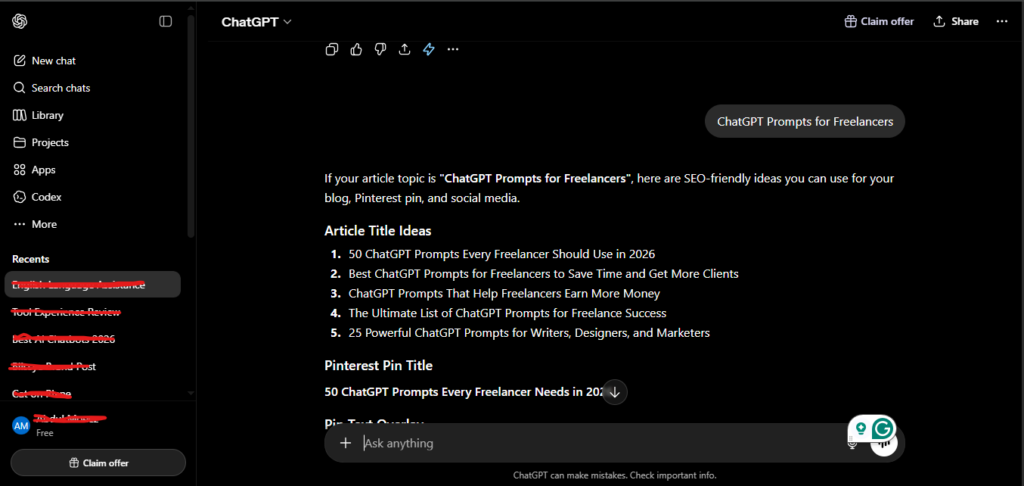
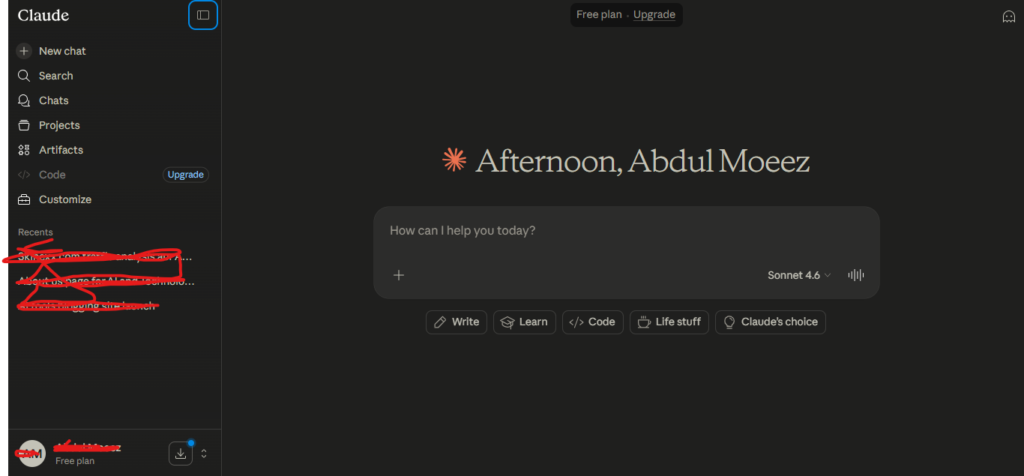
Pure automation tools move data. AI chatbots handle the parts that require actual reasoning — writing, summarizing, analyzing tone, or making judgment calls within a workflow. I integrate both ChatGPT and Claude directly into my Zapier workflows as processing steps: a new customer email comes in, gets routed through an AI step that drafts a response, and lands in my inbox ready for a quick review rather than a cold start.
Step 3: Build Your First Real Automation
Here’s the exact framework I using AI today, refined over two years of trial and error.
Map the Workflow on Paper First
Before touching any tool, I write out every single step of the task manually, including the small decisions I make without thinking about them. This step alone prevented multiple failed automations early on, because I discovered hidden judgment calls I wasn’t accounting for.
Set Clear Triggers and Actions
Every automation needs a defined trigger — a form submission, a new email, a scheduled time — and a corresponding action. Keep the first version of any automation simple. I learned this the hard way after building an overly complex five-step automation in month three that broke constantly because I tried to handle too many edge cases at once.
Add AI Steps Where Judgment Is Needed
This is where automation becomes genuinely powerful rather than just convenient. Instead of a rigid rule like “always send this exact email,” an AI step can read the incoming message, understand context, and generate an appropriately toned response — adapting to situations that weren’t explicitly programmed in advance.
Test Before You Trust
Every automation I’ve built goes through at least a week of supervised testing before I let it run unmonitored. AI-generated outputs inside a workflow need a human checkpoint initially, especially for anything client-facing. Over time, as confidence builds, that checkpoint can be removed for lower-stakes automations.
Real Automations I’ve Built Over 24 Months
Here are the specific workflows that have delivered the most consistent value in my own work:
Client Inquiry Routing
New form submissions automatically get added to a spreadsheet, trigger a personalized welcome email drafted by an using AI step, and notify me on Slack — all without manual data entry. This single automation alone reclaimed roughly 3-4 hours a week that used to go into manual follow-up.
Content Distribution
Whenever I publish a new blog post, an automation simultaneously shares it across multiple social platforms with platform-specific formatting, generated by an using AI step that adjusts tone and length for each channel.
Meeting Notes and Action Items
Every client call gets automatically transcribed, summarized, and broken into action items by an AI step, then routed to a project tracker — removing the need to manually review recordings or rewrite notes afterward.
Customer Support Email Triage
Incoming support emails get categorized by urgency and topic using an AI step, with routine questions getting an AI-drafted response for my review, and urgent or complex issues flagged for immediate manual attention.
Reporting and Analytics Summaries
Ad performance data from multiple platforms gets compiled into a single sheet on a weekly schedule, with an using AI step adding a plain-language summary of what changed and why — saving the manual cross-referencing I used to do every Monday morning.
Common Mistakes to Avoid
Based on two years of building (and breaking) automations, here’s what I’d tell someone just starting out:
Don’t automate a broken process. If the underlying task is inefficient or poorly defined, automating it just makes the inefficiency run faster. Fix the process first, then automate it.
Don’t skip the testing phase. An automation that fails silently is worse than no automation at all — especially for anything client-facing. Always build in a review step for the first few weeks.
Don’t over-engineer the first version. Start with the simplest version of a workflow that solves the actual problem. Add complexity only once the basic version is reliable.
Don’t ignore error handling. Early on, I had automations that would simply fail without any notification when an upstream tool changed its data format. Build in alerts so you know immediately when something breaks.
Don’t automate everything at once. Build one workflow, let it run for a few weeks, confirm it’s saving real time, and then move to the next. Trying to overhaul your entire workflow in one weekend leads to fragile systems that are hard to debug.
How Much Time Can You Realistically Save?
Based on my own tracked results over 24 months, here’s a realistic breakdown:
- Simple automations (data routing, notifications): 2-4 hours saved per week
- AI-assisted automations (email drafting, summarization): 4-6 hours saved per week
- Multi-step agentic workflows (research-to-report pipelines): 6-10+ hours saved per week, but with higher setup time and a longer learning curve
The compounding effect is the real story here. Individually, each automation feels modest. Combined and refined over two years, they’ve reclaimed entire days of my week that now go toward higher-value, creative work instead of repetitive admin tasks.
Final Thoughts
Automating your work using AI isn’t about replacing yourself or removing the human element from your business — it’s about removing the repetitive 80% of work that doesn’t require your judgment, so you can focus on the 20% that actually grows your business or improves your craft.
The biggest lesson from 24 months of doing this myself: start small, measure honestly, and build incrementally. The freelancers and small business owners I’ve seen succeed with automation weren’t the ones who built the most complex systems — they were the ones who built a few reliable, well-tested workflows and trusted them enough to stop checking constantly.
My Rating: 4.4/5
Frequently Asked Questions
What is the easiest way to start automating work using AI?
Start by tracking your actual workday for a week and identifying repetitive, predictable tasks. Tools like Zapier offer plain-language workflow builders (Copilot) that let you describe an automation in everyday language and have it built automatically — no coding required.
Is Zapier or Make better for AI automation?
Zapier is generally easier for beginners and offers more native AI features like Zapier Agents and AI by Zapier. Make is better suited for complex, branching workflows that require visual logic, though its AI capabilities are currently more limited to connector-level integrations.
How much does AI automation cost for a small business?
Most automation platforms offer free tiers for basic use, with paid plans typically starting around $20-30/month and scaling based on workflow volume. AI chatbot subscriptions used within automations (ChatGPT, Claude) typically add another $20/month if used beyond free tier limits.
Can AI automation fully replace manual work?
Not entirely, and it shouldn’t try to. The most reliable automations combine AI’s reasoning ability with human review checkpoints, especially for client-facing or high-stakes tasks. Full automation works best for low-risk, repetitive processes.
What tasks should I automate first?
Start with tasks you do repeatedly, that follow a predictable pattern, and that don’t require deep creative judgment — things like data entry, follow-up emails, meeting notes, and report generation are typically the best starting points.
How long does it take to see results from AI automation?
Simple automations can save measurable time within the first week of setup. More complex, multi-step workflows typically take 2-4 weeks to refine into something reliable enough to trust without constant supervision.

AI Tool Spots is a technology-focused platform dedicated to sharing the latest updates in Artificial Intelligence, software tools, automation, SEO, and digital innovation. We publish informative guides, honest reviews, tech tutorials, and valuable resources to help bloggers, entrepreneurs, marketers, and tech enthusiasts stay ahead in the digital world. Learn more at aitoolspots.com.